8. Services
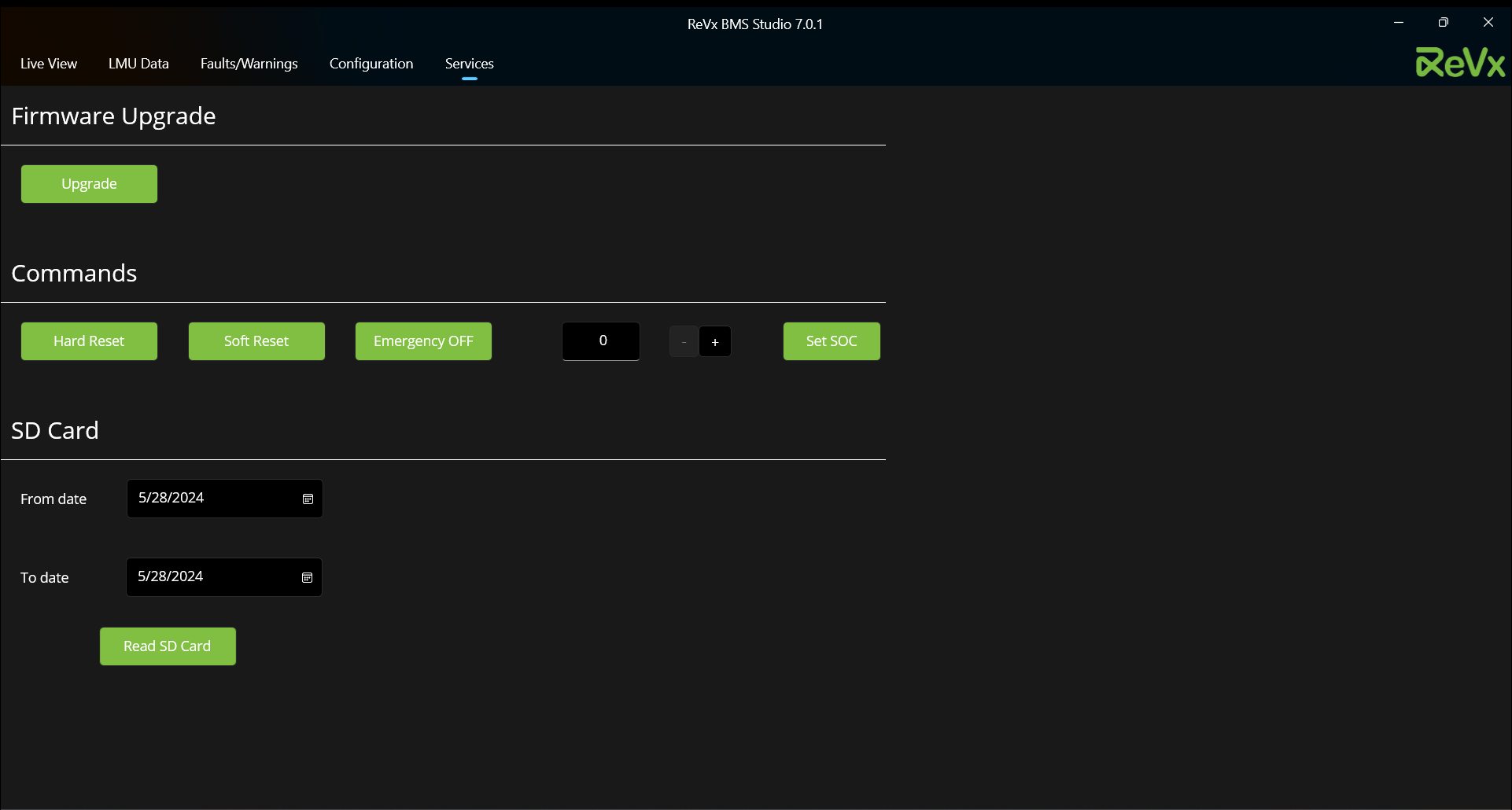
Services offered inside the application are listed below:-
8.1. Firmware Upgrade

Users can firmware upgrade their BMS using the Microboot firmware upgrade feature integrated inside the application. This can be achieved by clicking the "Upgrade" button on Services page.
Warning
- Ensure BMS is neither in charge nor discharge state while firmware upgrade is taking place.
- Make sure CAN is properly connected.
- If these conditions are not met, upgrade will fail and BMS needs to be serviced by ReVx.
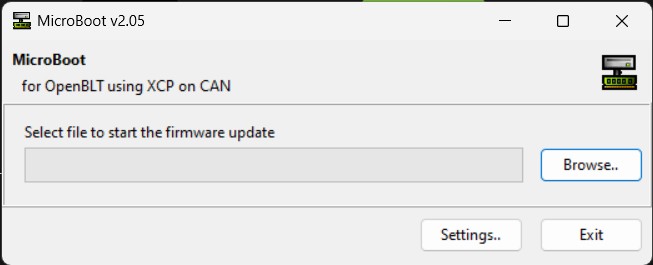
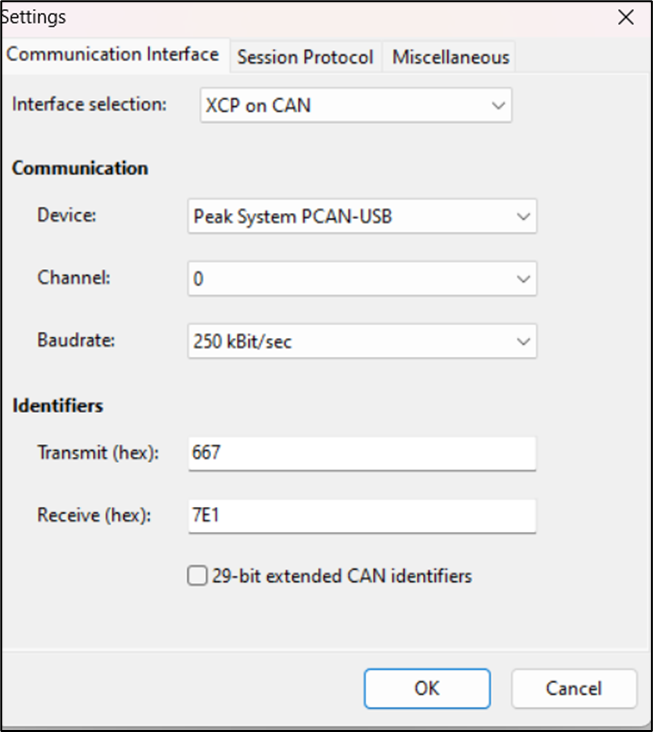
Click on settings and select device, baud rate.
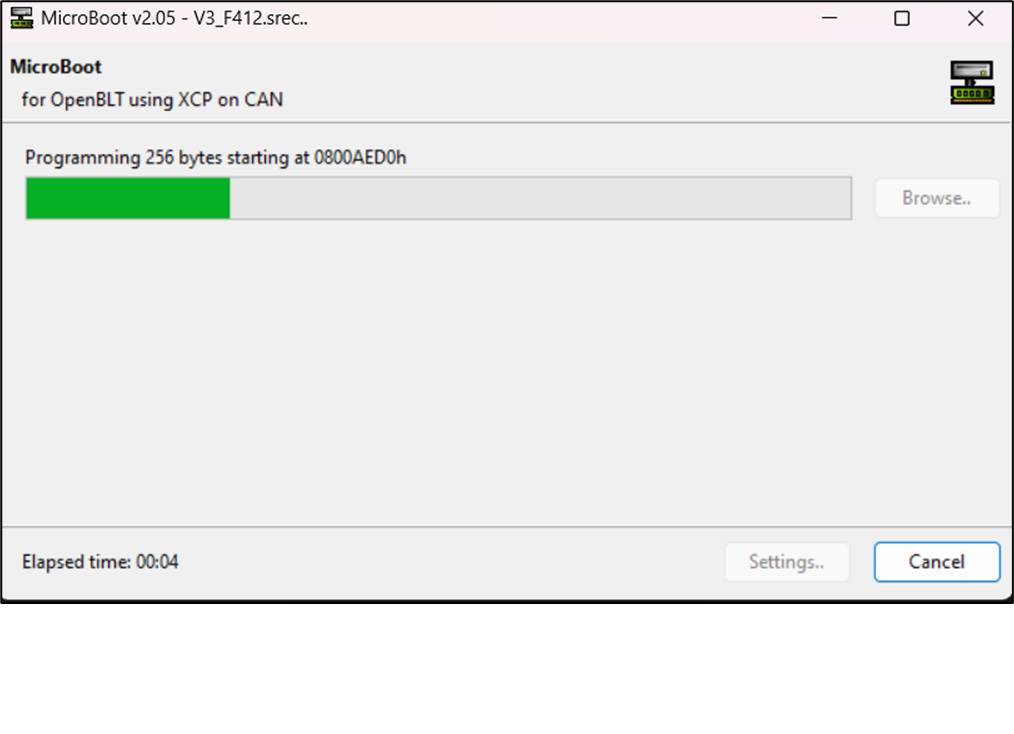
- Select Srec file, provided by ReVx. - LED on BMS will blink while upgrading - Once BMS is upgraded then LED will blink in normal pattern
8.2. Commands

ReVx BMS Studio offers the following commands:-
8.2.1. Hard Reset

Clicking the "Hard Reset" button makes the BMS do a hard reset. BMS will restart from bootloader
8.2.2. Soft Reset

Clicking the "Soft Reset" button makes the BMS do a soft reset. BMS will reset state machine and start again.
8.2.3. Emergency Off

Clicking the "Emergency Off" button makes the BMS do an emergency off.
8.2.4. Set SOC

Clicking the "Set SOC" button takes the value in the adjacent text field and writes it to the BMS.
[ Note: The entry value for SOC has to be a number between 0-100. In case of a wrong entry an error message will be shown. ]
8.3. SD Card
Clicking the "Read SD Card" button reads the SD Card data between the time period as selected by the user. Read only when when load is not connected